
Receiving emails but can't send? Here's the usual fix.
New messages land in your inbox, but your replies sit in the outbox. It's frustrating, and it's almost always a small settings issue.

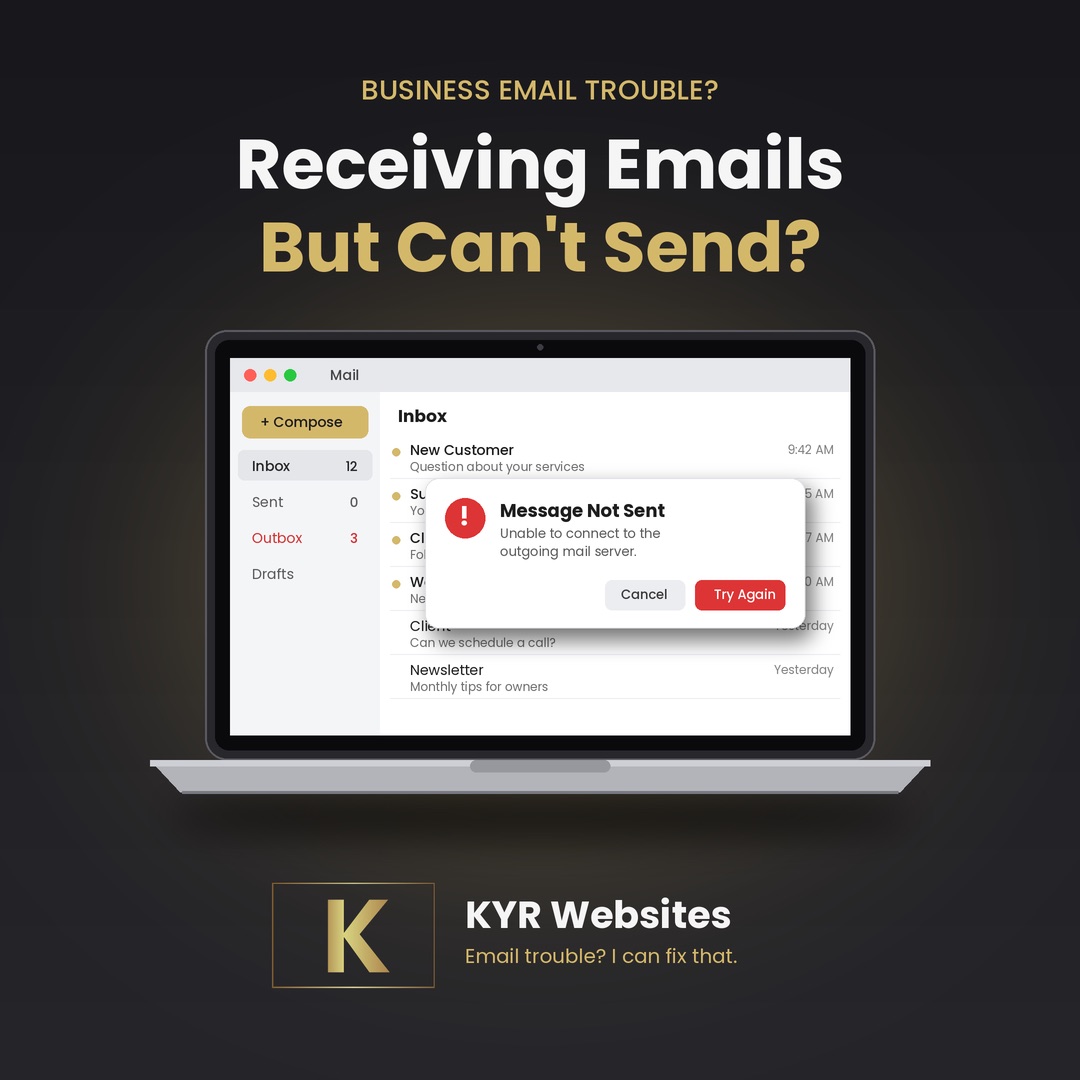
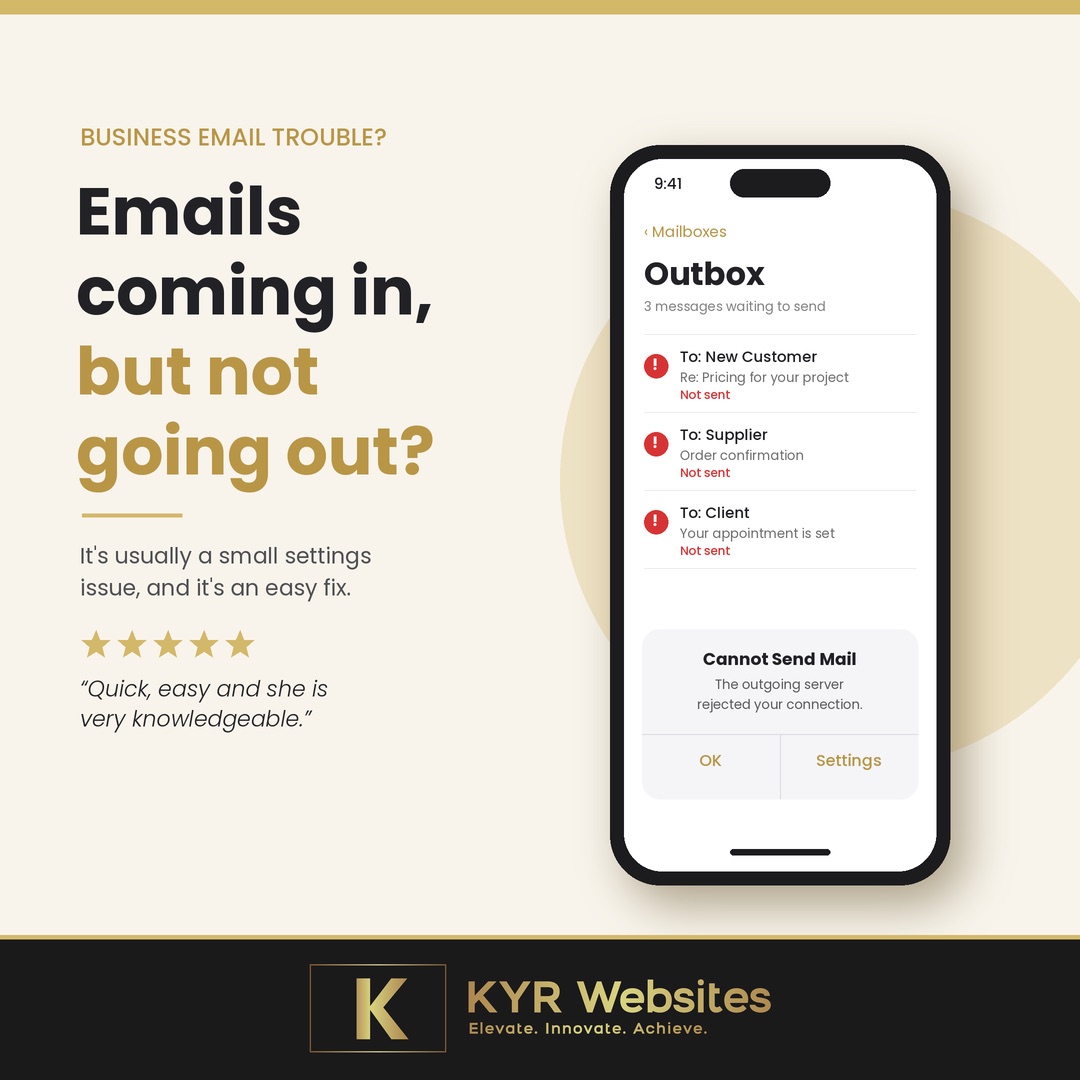
You open your email and everything looks normal. New customer questions are coming in. But when you hit reply, the message never leaves. It sits in your outbox, or you get a pop-up that says “Cannot send mail” or “The outgoing server rejected your connection.”
Here's the good news: when you can receive but can't send, your email account itself is almost always fine. Receiving and sending are handled by two separate servers, and only the sending side is having trouble. That narrows things down a lot.
Why receiving and sending are different
Your email app talks to two servers:
- Incoming server (IMAP or POP) downloads new messages to your phone or computer.
- Outgoing server (SMTP) takes the messages you write and delivers them.
Each one has its own address, port, and login. If the incoming settings are right but the outgoing ones are wrong or out of date, you get exactly this problem: mail in, nothing out.
The most common causes
1. You changed your password, but only one place got the update
This is the number one cause I see. You update your email password, and your app asks for the new one, but it only saves it for the incoming server. The outgoing server is still trying the old password and getting rejected. Many apps keep a separate password field for SMTP, tucked away in the advanced settings.
2. The outgoing server isn't set to require a login
Almost every email provider requires you to sign in before sending. If “SMTP authentication” or “My outgoing server requires authentication” is turned off, the server will refuse to send for you.
3. The wrong port or security setting
Outgoing mail travels through a specific “port.” Older setups often used port 25, which many internet providers now block for home and business connections to cut down on spam. Most providers today expect one of these:
| Port | Security | When it's used |
|---|---|---|
| 587 | STARTTLS | The most common modern setting |
| 465 | SSL/TLS | Also widely supported |
| 25 | None or STARTTLS | Often blocked; avoid unless your provider says otherwise |
Your email provider's help page will list the exact server name and port they want. Match those exactly.
4. Two-step verification needs an app password
If you recently turned on two-step verification (great idea, by the way), some email apps can't complete that second step. Providers like Google and Microsoft let you create an app password, a one-time code you paste into your email app in place of your regular password.
5. Your mailbox is full, or one message is stuck
A full mailbox can stop sending on some providers. And sometimes a single message with a very large attachment gets stuck in the outbox and blocks everything behind it. Try deleting that message from the outbox and sending a short test email.
A quick checklist to try first
- Send a test email from your provider's webmail (the version you log into in a browser). If that works, the problem is your app's settings, not your account.
- Open your app's account settings and find the outgoing / SMTP section.
- Re-enter your current password there, even if it looks filled in.
- Make sure authentication is turned on.
- Set the port to 587 with STARTTLS or 465 with SSL, whichever your provider lists.
- Clear out anything stuck in the outbox and send a short test.
Sending works, but people say they never got it? That's a different issue. Your messages may be landing in spam because your domain is missing SPF, DKIM, or DMARC records, which tell other mail servers your emails are legitimate. Those are set up in your domain's DNS settings, and they're worth getting right for any business.
When to call in help
If you've walked through the checklist and you're still stuck, or you'd rather not dig through server settings at all, that's what I'm here for. Most of the time it's a quick fix, and you'll be back to replying to customers the same day.